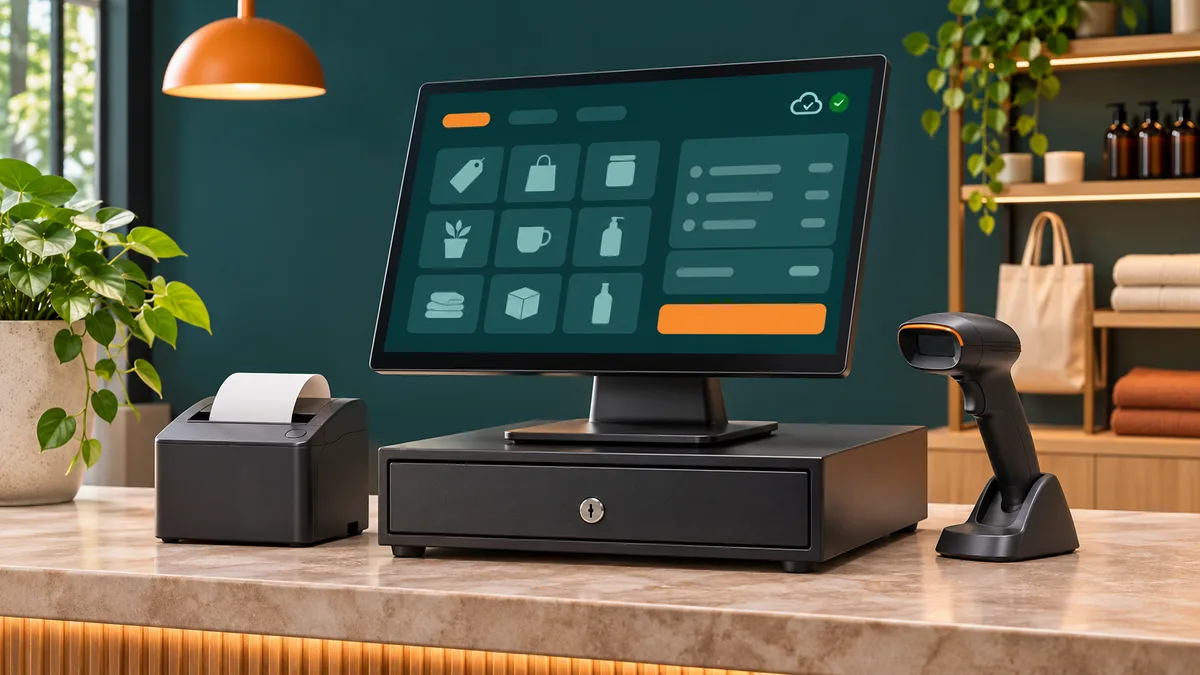
Desktop POS

A Windows till that keeps selling offline

Install the Desktop POS on your counter PC. It sells without internet and sends every sale when you are back online.

Version 2.1.2 · 162 MB · released 22 Nov 2026

Anyone can download it. To make sales, you need a Sylloo business and its device code.

Sells offline

The internet can drop and the shop keeps working. Sales are sent by themselves when the connection returns.

Fast at the counter

Made for scanning, tapping and the keyboard, with a busy queue of customers in mind.

Control over mistakes

Cashiers work inside their limits, a manager steps in with a PIN, and every discount, price change and removal is recorded.

From download to your first sale

  1. Download and installRun the file on your counter PC and follow the steps on screen.
  2. Open your Sylloo accountSign in, or start free if you are new.
  3. Show your device codeOpen your business, choose Devices and show the Practice or Live code.
  4. Type the code and sellUse the Practice code to learn. Use the Live code for real sales.

Everything in Desktop POS

Fast selling at the counter

Made for scanning, tapping and the keyboard, with a busy queue of customers in mind.

  • Scan a barcode; a second scan adds one more
  • A beep and a green or red flash tell the cashier if the scan worked
  • Search by name or code, with tabs for Featured, All, Categories, Brands and In cart
  • Pin favourite products as Quick keys
  • Price check: scan an item to see its price and stock without selling it
  • Stock left is shown on each tile and each cart line
  • Hold an order and bring it back later
  • Restaurant mode: dine-in or takeaway, and an open bill on each table that you can move or merge, also with no internet
  • Split a bill by items, add-ons and notes on each dish, and recipes that take their ingredients from stock
  • Keyboard shortcuts for every step of a sale, with F1 for the list
  • Touch mode, large text, dark and high-contrast looks, and an on-screen number pad
  • The order in progress comes back if the app is closed

Sells every kind of product

Sizes, weights, boxes and serial numbers all work at the till.

  • Products with sizes and colours: a picker shows each choice with price and stock
  • Each variation can have its own barcode
  • Weighed goods: reads the labels your shop scale prints
  • Sell by piece or by box, and the price follows the unit
  • Kits: shows ready kits plus how many the parts can still make
  • Serial numbers: scan, type or paste one per unit
  • Each serial number is checked with the office while online
  • Scan a serial number to find its product
  • Batch items sell at the till, and the office picks the batch with the earliest expiry
  • Products, prices and customers come from the office

Customers, prices and payment

Know who is buying, give them their price, and take money the way they want to pay.

  • Type a mobile number: a known customer fills in, an unknown number becomes a new customer
  • Find a customer by name or part of the number, or sell as walk-in
  • Customer group prices and VAT per product apply at the till
  • Quick pay: pick a method and finish in one key
  • Split a sale over several methods, with card slip number and last 4 digits
  • Quick-cash amounts and the change to give back
  • Extra charge per method, an additional charge such as delivery, and an order note
  • Part payment with a due date
  • Pay from a customer’s store credit
  • Cash rounding, for example to 0.05 in Finland, on cash-only sales

Control over discounts and mistakes

Cashiers work freely inside their limits, and a manager steps in for the rest.

  • Order discount by amount or percent
  • Line discount, or a new price with a reason
  • Discount limit per cashier, set by role
  • Manager approves on the spot with a PIN, also offline
  • A box locks for a minute after five wrong PINs
  • Asks why when a line is removed or an order cleared
  • Every discount, price change, removal and refused PIN is recorded with who did it and who approved
  • The record goes to the office
  • Cashier can sign in by name and PIN to switch fast
  • The till locks itself after idle minutes, and the order is kept

Shifts and the cash drawer

Know how much cash should be in the drawer at any moment.

  • Each cashier sells in their own shift, starting with a counted float
  • See sales, float, cash taken, cash in and out, and expected cash
  • Cash in and cash out with a reason and a note
  • Print an X report at any time
  • Close the shift with a count; the Z report shows what is short or over
  • A manager closes a shift another cashier left open
  • Drawer opens after cash sales or every sale, or on request with the right or a PIN
  • Card and mobile payments do not count as drawer cash

Returns, refunds and exchanges

Handle a return at the counter, with or without the receipt.

  • Scan the receipt and see what is left to return and the refund for each item
  • Works offline, and finds another till’s receipt when online
  • Without a receipt: add items by code, with a manager’s PIN
  • Pick the reason for the return
  • Tick the serial numbers that come back
  • Refund by the method paid, in cash, or as store credit
  • Exchange: the refund becomes credit towards new items, on one receipt
  • A refund receipt prints, and cash refunds open the drawer

Receipts and the customer screen

A receipt that looks like your shop, and a second screen for the shopper.

  • Three receipt looks: Standard, Compact and Detailed
  • 58 mm or 80 mm paper, silent printing, 1 to 5 copies
  • Choose what shows, with your own header and footer lines
  • Shop name, logo, address and VAT number come from the office
  • Serial numbers, warranty end date and amount in words on the receipt
  • Live preview, test print and reprint from past orders
  • A printer fault never undoes a sale
  • Customer screen on a second monitor with the live cart and a thank-you screen
  • Show your own pictures and videos as adverts when idle, or featured products
  • Copy settings from one till to another with a file

Keeps selling without internet

The internet can drop, and the shop keeps working.

  • Sell, print and take returns with no connection
  • Sales are sent by themselves when the connection returns
  • Sign in offline for 7 days after the last online sign-in
  • Built for slow connections: sales go first, pictures wait
  • A daily copy of the till’s data, also to a USB stick, keeping the last 7
  • Export unsent sales to a file
  • See waiting, uploading and failed sales from the tray icon, with a Retry button
  • Updates download and install by themselves
  • Practice mode: receipts are clearly marked as not real sales
  • One file with logs for Sylloo support

Octopus AI

Octopus AI works here too

Ask about your business in plain words and let it do the typing, always under your own permissions.

Meet Octopus AI
  • Which invoices are still unpaid?
  • What is running low?
  • How much did we sell last week?

Works with

Running more than one branch?

Every branch has its own stock, cash and staff. You see them all together, and move stock between them in a few taps.

Example
“The internet went down on the busiest evening of the year, and we kept selling.”
Owner, grocery store

What's new

Version 2.1.2 22 Nov 2026
  • Receipt design, kitchen stations and scale barcodes now come from the ERP (needs ERP 2.7.15).
  • Coupon codes and till branding at the terminal.
  • Fixes: opening float typed right after PIN sign-in is kept; a serialised item can be returned from its receipt; the kitchen "did not print" warning clears as soon as Retry prints.
  • Android till 0.1.2 (sylloo-pos.apk): shift register status, in-app update, Bangla digits on Return, safer PIN and lock.
Version 2.1.1 18 Nov 2026
  • This device: see the business, Live or Practice and this computer from the menu, the tray or the search; change the activation code from there (the till sends its sales first, then starts fresh).
  • Phone as a scanner: the Sylloo POS Android app can scan barcodes for this till.
  • Shifts: hand part of the cash over to the main office when you close a shift.
  • Receipts: barcode printing no longer needs an extra library.
  • New icon, and many small fixes.
Version 2.0.5 15 Nov 2026
  • Sylloo POS starts faster and smoothly: the start window shows at once and no longer says "Not responding".
  • The start window closes as soon as Sylloo POS is ready.
  • Opening Sylloo POS again while it is running brings the open window to the front.
  • Check for updates, Open customer display and Manage advertisements in the tray menu work again.

Sylloo POS by Sylloo System Ltd, Finland.

Version 2.0.3 14 Nov 2026
  • One Sylloo POS icon in the Windows tray (it used to show two). Click it to see the sync status, double-click it to open Sylloo POS. Right-click it for more options, such as Start with Windows.

Sylloo POS by Sylloo System Ltd, Finland.

Version 2.0.2 14 Nov 2026
  • Fixed: Sylloo POS 2.0.1 could stay closed after installing or updating. It now opens normally.
  • A start window shows that Sylloo POS is starting, so a launch never looks like nothing happened.
  • A new setup wizard with a finish page that confirms the installation worked.
  • Sylloo now runs at sylloo.app.
  • Faster first start after an update.

Sylloo POS by Sylloo System Ltd, Finland.

Version 2.0.1 11 Nov 2026
  • The till now connects to Sylloo at sylloo.eu, for both the ERP and live updates.
  • The till's desktop engine and its software packages are upgraded to their latest versions.
  • This version is built with exactly the package versions that were tested.

Tills on 2.0.0 update on their own. Nothing needs to be done at the shop.

Version 2.0.0 10 Nov 2026

Selling

  • Faster till: quick product search, scans that never get lost, F9 and quick-cash buttons, the cart kept across restarts.
  • Products with variations (size, colour), kits, weighed items from scale labels and serial numbers per unit (shown on the receipt).
  • Sell in other units: a box or a dozen at its own price, with stock counted in pieces.
  • Dated discounts: a discount applies only between its dates and from its minimum quantity, also offline.
  • New price on a line with a manager's approval when it is above the cashier's limit.

Customers

  • Find a customer by name or part of the mobile number, or sell to a walk-in customer.
  • See what a customer owes, what is overdue and their credit limit. A sale that leaves money owed above the limit needs a manager's PIN.
  • Take payment of an old due without a sale, with its own receipt.
  • Store credit, returns, refunds and exchanges.

Shifts and cash

  • Shifts on the ERP cash register: opening float, cash in and out, X and Z reports, cash drawer.
  • Money waiting for a manager's check counts in the drawer, so the shift closes even.

Restaurants

  • Dine-in or takeaway, tables with open bills (move, merge, split), kitchen tickets, add-ons and notes.

Safety and sync

  • Manager PINs, an audit trail, idle lock and sign-in with your social account.
  • Sync never loses a sale: problems wait at the office for checking.
  • Updates are now signed by Sylloo, and the till can follow a moved server address without a new version.
  • Daily backups, offline sign-in for 7 days and a support file for help.
Version 1.0.5 6 Oct 2026
  • Receipt position can be adjusted in Settings: a horizontal offset (mm) and a scale (%), for printers that print off-centre or cut an edge.
  • Sales with change now sync to the ERP with the net amount as paid (e.g. 452.50, not the 500 handed over), so the ERP's cash isn't overstated by the change. The receipt still shows the cash given and the change.
Version 1.0.4 6 Oct 2026
  • Receipts now print on a page the width of the receipt roll (80 mm or 58 mm, from Settings) instead of A4. Fixes receipts printing shifted to the right with most of the text missing on printers such as the Xprinter XP-365B.

Questions and answers

A Windows PC at the counter. Add a barcode scanner, a receipt printer, a shop scale that prints barcode labels or a second monitor if you like.

They are sent by themselves when the internet is back. A sale with a problem is kept and waits for a person to check it.

Yes. In Practice mode, receipts are clearly marked as not real sales.

Yes. The manager enters a PIN at the till, also with no internet, and the approval is recorded.

Yes. Add the items by code with a manager’s PIN, then refund or exchange them.

Set up your counter today

Install it on your counter PC, then open Business › Devices in Sylloo and show your code.

Moving from spreadsheets or another system?

Send us your products, customers and balances. We help you move them in, so you start with your own data.